Antigravity Voice Mode Is Official: We Tried It, What It Sends to Google, What You Can Approve
TL;DR
- On November 6, 2026 Google announced voice mode in Antigravity, built on Gemini Live. It works in the Antigravity App and in the Antigravity CLI 1.5.0 and later. You talk, the agent answers out loud, and the work happens in the normal conversation. It is still rolling out gradually.
- It has reached our Google AI Pro account. On November 4, in our first test,
/voice liveanswered "Live mode isn't available in this session". On November 7, in agy 1.5.2, a plain/voicestarted a live voice chat. It answered out loud in English and in Ukrainian, but the written copy of the answer in the conversation came out in pieces and partly twice. In the app, the first start opens a picker with nine voices, and the reply came out clean. - Your voice goes to Google. According to the documentation, the app streams your microphone audio to Google servers, and when the agent works on a spoken request, that request includes the audio. The voice transcript is saved on your computer and is deleted together with the conversation.
- You can grant permissions by voice, including "Always allow this". Destructive actions such as
rm,sudoor a force-push are the exception: those need a click on screen.
What Google announced
The blog post from November 6 describes voice mode as a spoken, two-way conversation with the agent. You give it a task, steer it while it runs ("just check it, don't change anything yet"), ask what it is doing, and answer permission prompts without clicking. The agent stays quiet while it works unless you ask for updates ("keep me posted" gives a short update about every 30 seconds). There are nine voices to choose from. How to start it is at the end of this article.
The app announced voice mode earlier, in v2.29.0 on November 3, as "rolling out gradually", and the documentation page was already online when our tracker first saw it on November 4. The blog post is the official launch, but the rollout note didn't go away: the docs still say voice mode "might also not be available for your account yet".
We tried /voice in agy 1.5.2 and in the app
Three days after our first attempt, voice mode had reached our account (Google AI Pro, Windows, Europe). We tested the CLI, agy 1.5.2, and the Antigravity App on November 7.
In the CLI
In /settings, Voice Mode is set to auto by default, so a plain /voice started a live chat rather than dictation. F5 (dictation) and F6 (live) both worked.
We asked the same question as last time, "How do you work in voice mode?". The status row under the prompt went from starting to listening, with our words appearing as we spoke, then thinking and speaking. The laptop sound happened to be muted during this first try, so we didn't hear the reply. When we pressed Esc, the conversation showed "Stopped voice chat · 00:24".
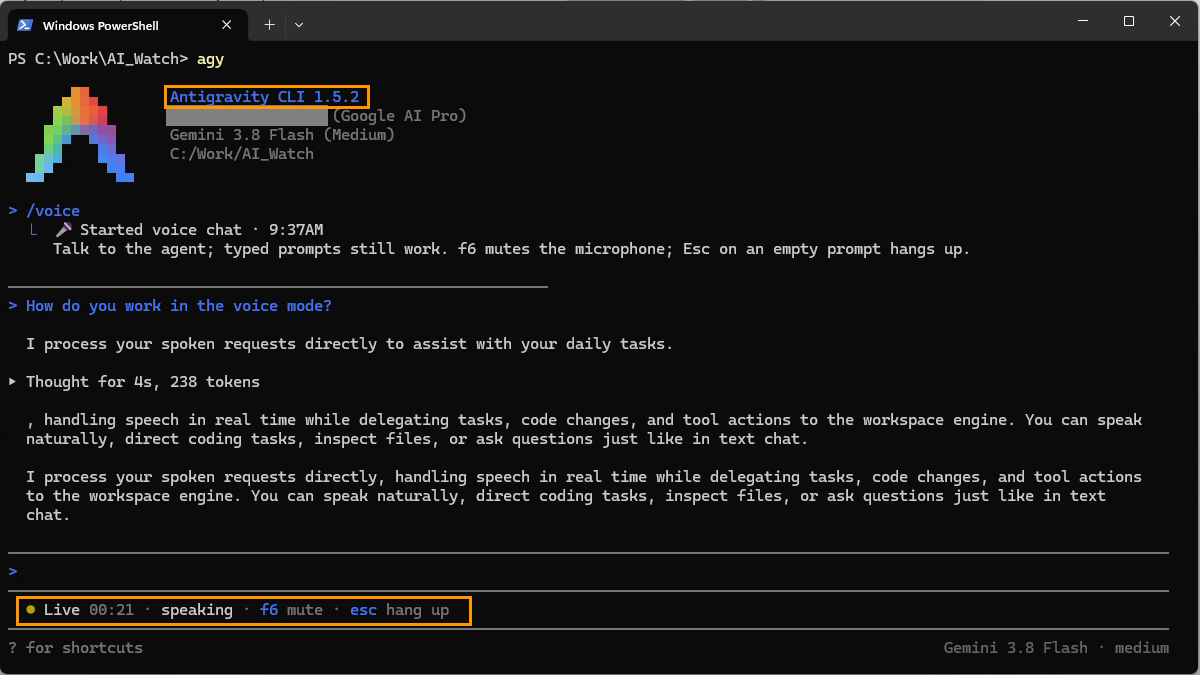
The written copy of the answer in the conversation didn't come out clean:
- First a short sentence: "I process your spoken requests directly to assist with your daily tasks."
- Then "Thought for 4s, 238 tokens".
- Then a fragment that starts mid-sentence, with a comma: ", handling speech in real time while delegating tasks, code changes, and tool actions to the workspace engine…"
- Then the whole answer again as one paragraph, which repeats the fragment.
So a reader of the conversation sees the same text roughly twice. That's a cosmetic issue, not a privacy one, and it may be fixed by the time you read this. It reminded us of the duplicated text we saw in dictation three days earlier, though there the cause was clearly different.
In a second try with the sound on, the agent answered in a female voice, clearly, in English and, when we switched languages, in Ukrainian.
In the app
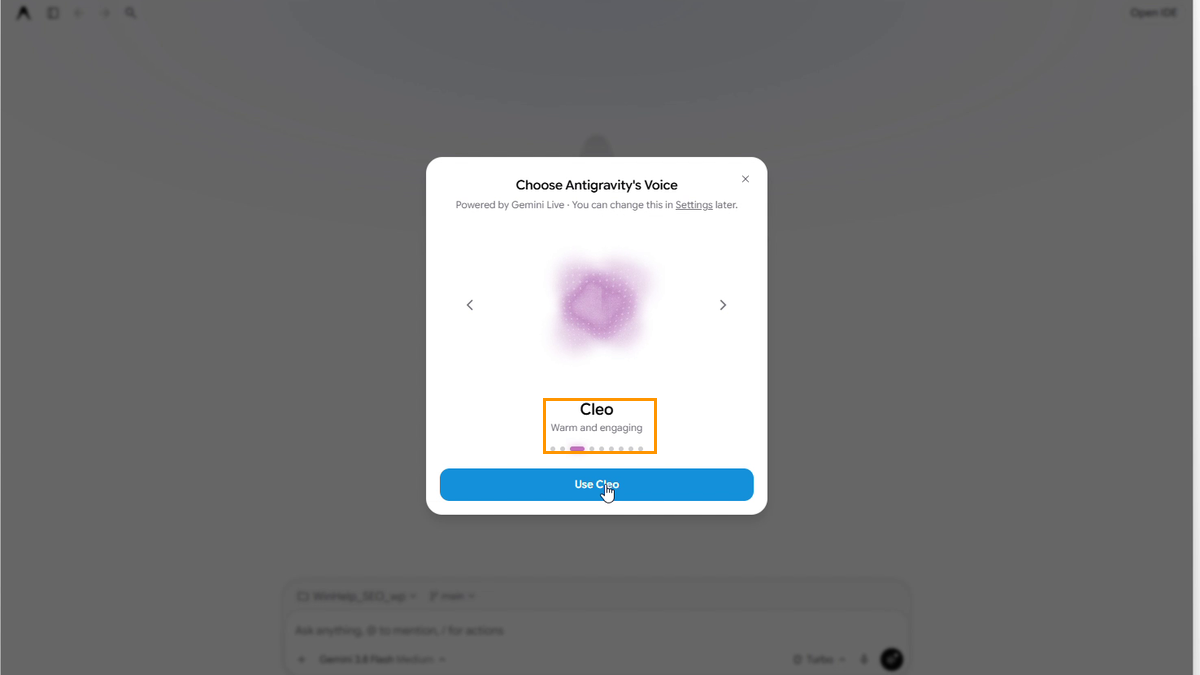
The first time we clicked Start Voice mode, the app opened Choose Antigravity's Voice, "Powered by Gemini Live", with a note that you can change the voice in Settings later. Each voice plays a sample, and the arrows step through them. The row of nine dots matches the nine voices in Google's blog post. We listened to four of them: Fola ("Clear and friendly"), Arlo ("Confident and clear"), Cleo ("Warm and engaging") and Finn ("Warm and approachable"), and picked Cleo.
Then a panel rose above the message box with "Listening. Ask anything." We asked the same question. Our words appeared in the panel and faded, and the reply appeared as grey text that turned black word by word as the agent spoke. Unlike in the CLI, the text came out once, without repeats. The call bar shows whose turn it is, the time, and buttons for the microphone, the agent's voice, the speed and End.
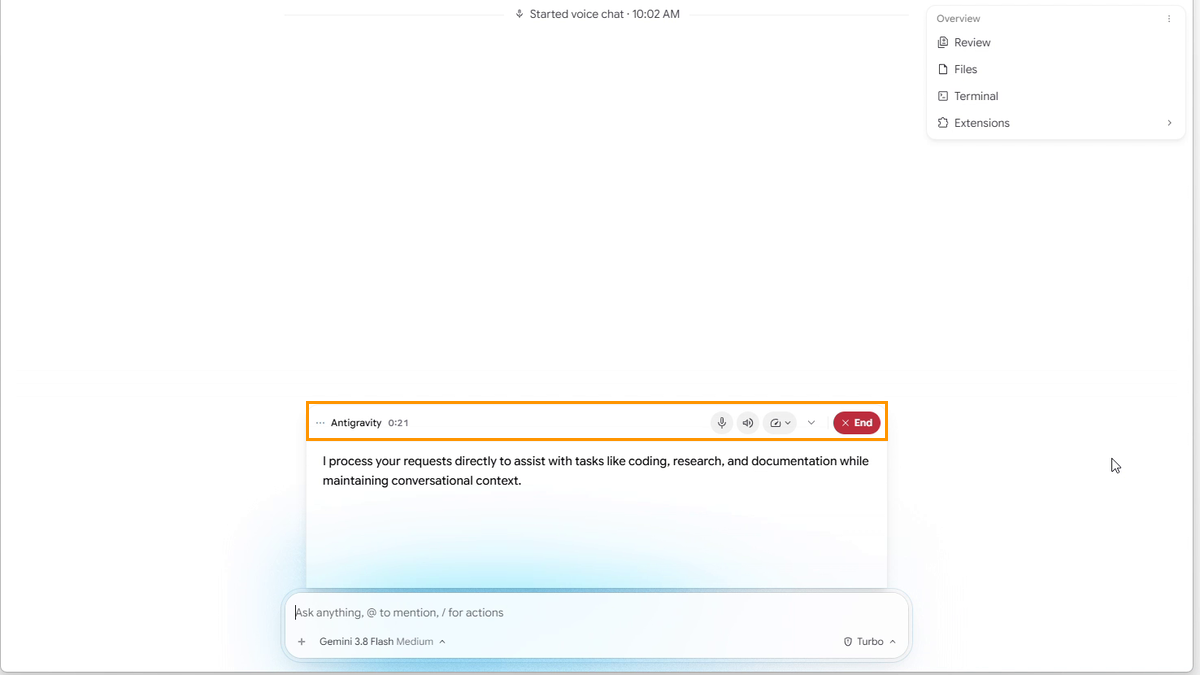
We asked in Ukrainian next, and the agent answered in Ukrainian. When we clicked End, the conversation showed "Stopped voice chat · 30s" and a Voice transcript card with an Open button, as the docs describe. We haven't tested voice approvals yet.
What does Antigravity voice mode send to Google?
The documentation has a short section called "How voice mode works". In plain words:
| What | Where it goes |
|---|---|
| Your microphone audio | Streamed to Google servers, where Gemini Live recognizes what you say and generates the spoken replies |
| A spoken request the agent works on | The request includes the audio of what you said |
| What the voice model can reach | Only the conversation you started voice mode in. File edits, commands and tools run in that conversation under your usual permissions |
| Transcript (app) | Shown in a panel while you talk, then saved on your computer as a Voice transcript card. Deleted when you delete the conversation |
| Transcript (CLI) | Spoken lines appear in the conversation like typed prompts |
Some details that matter for privacy:
- Muting sends silence. While you're muted in the app, it "sends silence instead of your microphone's audio", so the connection stays open. To stop sending anything, end the call: click End, say "Bye", or close the window.
- Hanging up doesn't stop the agent. A task that is still running keeps going after voice mode ends.
- Over SSH, the microphone is yours.
agy mic-serveruns on your own computer and serves its microphone and speaker to a CLI on another machine (you point the CLI at it withANTIGRAVITY_MIC). When we started it on November 4, it listened on 127.0.0.1:4713. The/voicedocumentation connects the remote CLI to it through a reverse SSH tunnel and asks you to keep the server bound to loopback, so other devices on your network can't reach the audio stream. - Not everywhere. Voice mode works only in local conversations in the app, not in Remote Control sessions or cloud conversations, and not in CLI print mode or remote-agent sessions.
What the documentation doesn't say: how long Google keeps the audio, and whether it is used to improve models. Look for that in your plan's terms. We didn't find it on the voice mode page.
Can you approve permissions by voice?
Yes, with limits. When the agent needs permission, it reads the request out loud with its recommendation and waits. According to the docs, you can answer:
| You say | Result |
|---|---|
| "Allow it just this once." | Allow once |
| "Allow it for this conversation." | Allow for this conversation |
| "Allow it for this project." | Allow for this project |
| "Always allow this." | Allow globally |
| "No, run the tests first." | Deny and suggest something else |
The agent confirms with "Done." or "Denied." While a prompt is waiting, "Stop" or "Cancel that" denies it. Some risky actions can be allowed only once, and destructive ones, such as deleting files (rm), running with elevated privileges (sudo) or force-pushing to Git, can't be approved by voice at all. You have to click Allow. You can still deny them by voice.
That last rule is a sensible guardrail. Still, "Always allow this" is a permanent, global permission given by one spoken sentence, and in the app your words aren't added to the conversation. They are kept in the transcript card. Google says the model hears your voice directly, so a mistake in the on-screen transcript doesn't mean it misunderstood you. Our view: if you use voice approvals, check your permission settings now and then, and give wide permissions with a click rather than a sentence.
Voice mode vs. voice dictation
Both the app and the CLI now have two ways to use your voice, and they are easy to mix up:
| Voice mode | Voice dictation | |
|---|---|---|
| App | Start Voice mode button | Microphone button, Ctrl+M |
| CLI | /voice live, F6 | /voice dictate, /record, F5 |
| Agent answers | Out loud, while it works | In writing, after you send |
The Antigravity IDE has neither. In the IDE on our machine (version 2.6.0) the Agent panel's message box has no microphone and no voice button, and the voice mode documentation lists only the App and the CLI.
If your message box has only the microphone, you have dictation, not Gemini Live. In our test of dictation on November 4, the live transcript duplicated our question and then wrote an answer nobody had said while we were silent. The text that was actually sent was correct every time.
Why voice mode doesn't start
The CLI tells you why:
- "Live mode isn't available in this session." The docs say to make sure you have CLI 1.5.0 or later, and add that voice mode "might also not be available for your account yet". That's what we got on November 4.
- "This is an SSH session, so live mode needs your workstation's mic and speaker." Run
agy mic-serveon your own computer, as described above.
In the app, the docs list two signs that your account isn't enabled yet: the Start Voice mode button doesn't appear even with an empty box, or the call shows "Couldn't connect". The button also disappears when you've reached your usage limit.
One more thing from our version tracker: the CLI release 1.5.1 (November 5) added support for listing and deleting voice conversations of remote agents, while the docs still say voice mode isn't available in remote-agent sessions. Our guess is that voice for cloud agents is next, but nothing official says so.
How to turn on voice mode in Antigravity
- App: clear the message box (attachments too) and click Start Voice mode, the round button with sound bars next to the dictation microphone. The first time, you choose a voice. To end the call, click End or say "Bye".
- CLI: update to 1.5.0 or later, then run
/voice liveor press F6 in a conversation (with Voice Mode on auto, a plain/voicealso starts live mode, as it did for us). F6 mutes the microphone; F7 or Esc on an empty prompt ends the call. In/settings > Voice Modeyou can choose what/voicealone starts: auto, live or dictation. - Microphone permission: on Windows, Settings > Privacy & security > Microphone, with "Let desktop apps access your microphone" on. That's also where you take access away.
Read next
- Antigravity dictation test: the transcript that answered itself: what the microphone button does, and its silence bug
- Antigravity is building a native swarm mode: another feature switched on from Google's side
Sources: Voice mode in Antigravity (Google blog, November 6, 2026); Voice mode and /voice documentation, read November 4 and 7, 2026; Antigravity changelog (app v2.29.0); our tests of agy 1.5.0 and 1.5.2 and of the Antigravity App on Windows, November 4 and 7, 2026; our version tracker's comparison of the official CLI releases (see our editorial policy). Product names belong to Google.