Antigravity CLI Agent Modes Explained: Default, Accept-edits, Auto and Plan
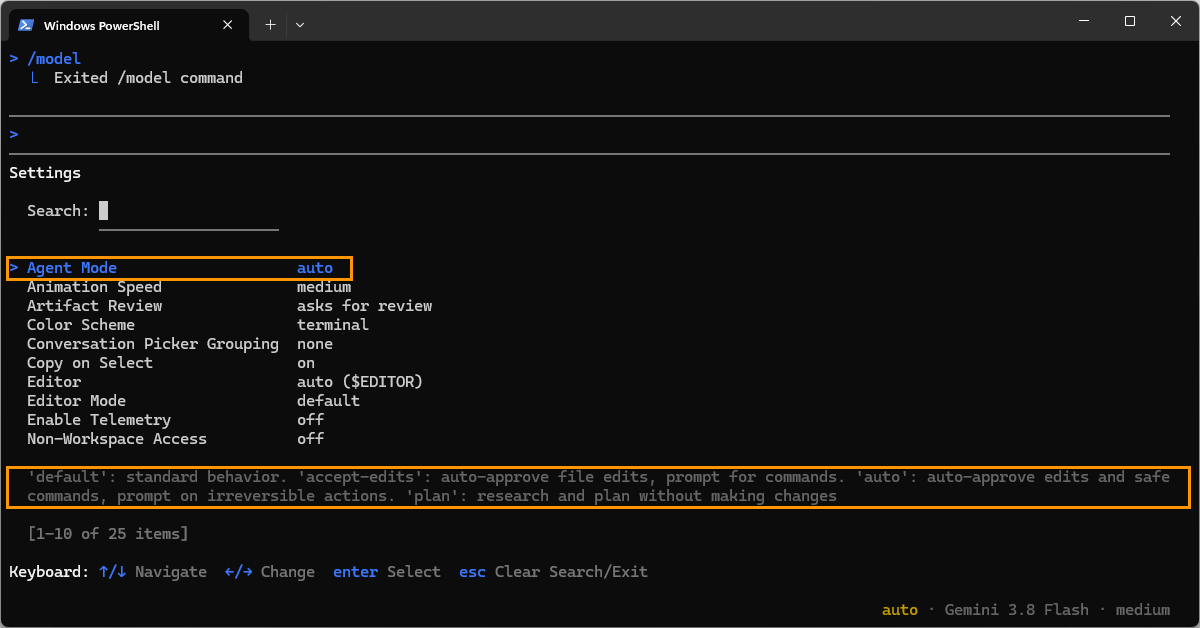
TL;DR: Antigravity CLI (agy) has four agent modes: Default asks before every edit and command, Accept-edits approves file edits only, Auto also approves safe commands, and Plan only researches and proposes a plan. Since CLI 1.5.7, new sessions start in Auto wherever it's available, headless agy -p included. This page is kept up to date; last checked against CLI 1.5.10.
The four modes at a glance
| Mode | File edits in your project | Terminal commands | Sandbox | Status line |
|---|---|---|---|---|
| Default | asks, with a diff | asks (by default) | off unless you turn it on | no label |
| Accept-edits | approved | asks (by default) | off unless you turn it on | accept-edits |
| Auto | approved | run in the sandbox; outside it, a reviewer approves safe ones | on automatically | auto |
| Plan | none: read-only research, then a plan | not documented; we haven't tested it | as configured | plan |
The behaviour in the table follows the execution modes documentation and the permissions documentation, and matches what we saw in our tests (below). Default really has no label: in CLI 1.5.10 the status line shows only the model, and the prompt box shows no hint, unlike the other three.
Default mode: asks before every edit and command
Default pauses before writing any file and shows a syntax-highlighted diff to accept or reject, and asks before running terminal commands. In our November 17 tests it asked even before a plain Get-Content file read, with four choices: run once, always allow in this conversation, always allow and save to settings.json, or cancel.
The sandbox is off in Default unless you enable it (enableTerminalSandbox defaults to false outside Auto, per the sandbox documentation). So after you say "Yes", a command runs directly on your machine.
Choose it when you want to see every change and every command, for example in a repository with sensitive code.
Accept-edits mode
Accept-edits approves file creations and edits inside your workspace automatically, including writes from subagents, and still asks before terminal commands. Launch it with agy --mode=accept-edits.
Choose it when you trust the agent with code edits but want to approve each shell command.
Auto mode: what it approves without asking
Auto approves workspace edits and runs terminal commands inside the terminal sandbox. When a command needs to run outside the sandbox, the CLI evaluates it: per the documentation, safe, reversible commands run without asking, while risky or irreversible ones still prompt.
What that means in practice, from our tests on CLI 1.5.10 on Windows:
- When the sandbox blocked a file read, the agent re-ran the read outside the sandbox and it was approved by Auto's reviewer, with no prompt, including from
AppData, which 1.5.10 blocks inside the sandbox. - A prompt appeared only when the command would also overwrite an existing file. The stated reason was that the overwrite couldn't be undone, not what the command read.
- Writing a file in a project folder outside the user profile went the same way: denied in the sandbox, then approved outside it (our guess: because the folder was outside the user profile).
Requirements: CLI 1.3.5+ on macOS and Linux, 1.4.4+ on Windows; the terminal sandbox (on Windows, Windows 11 24H2 or later with the August 2026 update); a personal account. Auto isn't offered to business or enterprise accounts, including Gemini Enterprise. Where it isn't available, it doesn't appear in Shift+Tab or /config, and --mode=auto falls back to Default.
One oddity: on our personal Google AI Pro account, passing --mode auto explicitly printed that Auto "is not available for this account", although the session without the flag clearly ran in Auto.
Choose it when you want long unattended stretches and accept that the agent can read files outside the sandbox when it decides it needs them.
Plan mode
Plan prepends /plan to your prompts. The agent investigates with read-only search and file-viewing tools and presents an outline for your approval before writing any code. Launch it with agy --mode=plan. We haven't tested Plan mode ourselves.
Choose it when you're starting a large refactor or exploring unfamiliar code.
Which mode is the default?
Since CLI 1.5.7 (November 12, 2026), per the changelog, sessions with no saved mode start in Auto wherever Auto is available, and in Default elsewhere. That includes headless agy -p runs. As of our latest copies of the modes and permissions pages (November 5 and 12), they still say the CLI starts in Default. We covered the switch in Antigravity CLI 1.5.7 turns on Auto mode by default.
How to switch modes or turn off Auto
To turn Auto off for good, open /config and set Agent Mode to default (this saves "agentMode": ""). For one session, press Shift+Tab until the status line shows no mode label.
- For this session:
Shift+Tabcycles default → accept-edits → auto → plan → default (Auto is skipped where it isn't available). - Permanently:
/config→Agent Mode. This writesagentModeto~/.gemini/antigravity-cli/settings.json:"accept-edits","auto","plan", or""for Default. - For one run:
--mode=accept-edits,--mode=autoor--mode=plan. There is no--mode=default; for Default, setagentModeto"", or pass it for one run with--settings '{"agentMode":""}'.
One surprise from the documentation: if Default is waiting for you to accept a file edit and you press Shift+Tab to Accept-edits or Auto, the pending edits are approved, including queued writes from subagents.
Two settings that sit on top of the mode
Terminal sandbox (enableTerminalSandbox). Runs agent commands inside an OS-level boundary: namespaces on Linux, sandbox-exec on macOS, an AppContainer on Windows. Per the sandbox documentation, sandboxed commands can write to your workspace, temp folders and build caches, have no network by default, and can't see sensitive files. Since CLI 1.5.10 that includes ~/.config and, on Windows, AppData\Roaming; in our test AppData\Local and the profile root were blocked too, while Git settings stayed readable. Also in our Windows test, writes to a project folder outside the user profile were denied inside the sandbox; we haven't tested a folder inside the profile. Auto turns it on automatically; in other modes it's off unless you enable it in /config, in settings.json, or with --sandbox for one session. The sandbox isn't a mode, so it doesn't appear in Shift+Tab.
Tool Permission (toolPermission). Decides when the agent asks outside Auto:
| Value | What it does (per the settings documentation) |
|---|---|
request-review (default) | asks before write, shell, web and MCP tools unless an allow rule covers them |
proceed-in-sandbox | runs sandboxed commands without asking; asks before anything outside the sandbox |
strict | asks before every tool action, file reads included, even when an allow rule matches; overrides Auto |
always-proceed | runs commands, web requests and MCP tools without asking, except ask and deny rules; overrides Auto. Same as --dangerously-skip-permissions |
Your own deny and ask rules (/permissions or settings.json) always apply, evaluated as Deny > Ask > Allow. allow rules skip the prompt in every setting except strict.
Modes in headless agy -p
Nobody can answer a prompt in a headless run, so anything that would ask is refused. What we saw:
Mode in agy -p | Our result |
|---|---|
| Auto (no saved mode) | commands ran; a read outside the sandbox was approved automatically (CLI 1.5.10, Nov 17) |
Default (--settings '{"agentMode":""}') | the first command was refused: "headless mode cannot prompt" (1.5.10, Nov 17) |
Default with sandbox and proceed-in-sandbox | the sandboxed read ran and was denied by the sandbox; the attempt to go outside the sandbox was refused (1.5.10, Nov 17) |
| Accept-edits | a nested agy -p command was refused with the same message (1.5.7, Nov 12; in 1.5.4 the same nested call was refused even with allow rules) |
| Plan | not tested |
The refusal message suggests adding a command(...) allow rule or using --dangerously-skip-permissions. In scripts, pin the mode you want instead of relying on the default.
Which setup should you pick?
- Most control: Default. Every edit and command needs your "Yes".
- Fewer prompts, and files outside the project stay closed: Default with the sandbox on and Tool Permission set to
proceed-in-sandbox. Sandboxed commands run freely; anything that wants out asks. We confirmed the outside-the-sandbox refusal only in headless runs. On Windows, projects outside the user profile may prompt for every write. - Least friction: Auto. Know that the agent can read outside the sandbox when the reviewer considers it safe.
- Scripts and CI: pin the mode. Use
--mode=accept-editsor--mode=plan, or for Default add--settings '{"agentMode":""}'. Without that,agy -pstarts in Auto since 1.5.7 and can approve commands outside the sandbox with nobody watching. Prefer exactcommand(...)allow rules over--dangerously-skip-permissions.
What we don't know
- Whether path
denyrules orstrictstop Auto from reading outside the sandbox. The documentation says both take precedence, but we haven't tested it. - How Plan mode behaves in headless runs.
- How the modes behave on macOS and Linux. Our tests are on Windows 11.
Read next
- Antigravity CLI 1.5.10 locks AppData in its sandbox, but Auto mode still reads it
- Antigravity CLI 1.5.7 turns on Auto mode by default, even for headless agy -p
- Antigravity /swarm on Google AI Pro: Default vs Auto mode in practice
Sources: Antigravity documentation on execution modes, permissions, settings and the terminal sandbox (our copies of November 5–12, 2026); the CLI changelog for 1.5.7 and 1.5.10; our tests in Antigravity CLI 1.5.7 (November 12) and 1.5.10 (November 17, 2026) on Windows 11 with a Google AI Pro account. How we work: editorial policy.